Tuesday, March 14, 2017

How To Set Up Network File Sharing That Always Works


I've missed a couple months of blog entries because I've just been way too busy with other I.T. work and family and life in general. However, I'm back and here's my latest entry.

Since before 2006 when Windows XP was the reigning OS, file sharing on a LAN (Local Area Network) was easy, simple and just plain worked. After 2006 and beyond during the introduction of Windows Vista, Windows 7, Windows 8.1, and Windows 10, the LAN Network File Sharing has become a bit of wildcard and would only sometimes work properly. This made it frustrating for me whenever I wanted to set up a Media Server to stream videos and movies across to various devices on the Network. Devices ranged from Samsung Galaxy S Smartphones, Apple Ipads, Google Nexus Tablets, various laptops and desktop PC's, and some Android enabled TV boxes with Kodi.


In the following years I would experiment with setting up Windows 7 and Windows 8.1 and Windows 10 PC's as the media servers with File Sharing and Drive Mapping, but always had mixed results. Ultimately I chose File Sharing over Drive Mapping because I wanted to enable limited sharing within specific network Workgroups and not the entire LAN like what Drive Mapping does. Sometimes the file shares would work, and then wouldn't work, and then seemingly randomly work again. Sometimes the file shares would disappear for no reason and I would have to set them up again. It was a bit of a head scratcher.

Back in 2008 I had set up a small Windows XP file server that was always able to seamlessly file share and stream. Near the last quarter of 2016 after over 8 years of flawless streaming, my Windows XP server was getting too slow to smoothly stream HD videos and I finally had to replace it with a more modern computer.

After fiddling around with different settings and seeing what worked, I finally positively discovered a surefire way to make modern Windows File Sharing work no matter what. Use a setting called "Advanced Sharing" and enabling "Full Control" for the entry "Everyone". You should also make sure that your Network Workgroups are setup and named correctly before doing this.


Here's how to set up file sharing that always works:

- browse to the location of the folder that you want to share on the local computer or server.

- right-click the folder and choose "Properties" --> click on the tab "Sharing" --> click on the button with the shield icon "Advanced Sharing...".

- put a check mark in the checkbox beside  "Share this folder".

- optionally you can type in a new Share Name or leave it as the default.

- click on the "Permissions" button

- a new window will pop-up. Inside the box underneath "Group or user names" and look for an entry called "Everyone".
- If it is not listed, click the "Add" button. --> in the next window underneath "Enter the object names to select" there will be a box to type into. --> type "Everyone" without the quotation marks, and then click the "OK" button.

- back at the Permissions Window, make sure "Everyone" is hilighted and in the box below it will say "Permissions for Everyone" --> put a check mark in the checkbox "Full Control" and optionally for "Change". "Full Control" allows network devices to fully see the share on the network where they previously could not detect the file share, and "Change" will allow network users the ability to copy, paste, or delete files from that folder.

- keep on clicking the "OK" buttons until you are back to where you started and that's it. Fully compatible and visible file sharing is enabled for that folder on your network.

Saturday, December 31, 2016

Astronomical Calendar Repetitions - Happy New Year 2017!

On the eve of 2017 I want to wish everyone a Happy New Year!
For this post, I'm using information from one of my old blog posts from 2011 and have slightly updated it.

I recall way back to my 16th birthday. It was just after November of 1995 and I was given my first PC computer system for my birthday. It's a pivotal moment in my own history since that is when I really started to get into I.T. and the technical computing field. This will be my 22nd year being in I.T.

I discovered a number trick in a really nerdy way. The way I discovered this number trick was after my older brother Clyde gifted me this awesome Playboy Playmate calendar full of beautiful women for Christmas. I wanted to figure out how the calendar system worked and to see if the Calendar would repeat itself so that I could re-use the sexy calendar in the future. I utilized my Windows 95 PC to help me find it.

Here's what I did. I recorded the number of the day, the day of the week, and the year. Then I used the calendar on Windows 95 to discover when the exact same day occurred again. I found that the exact same number of the day, exact day of the week occurred again 5 years later, and then 6 years from that date, and then 11 years from that date and then again 6 years from that date. Then the cycle would repeat.

For an example I will just use my birth year. I was born in 1979. The next time my birthday would occur on the exact same number and day of the week was 1984, then 1990, then 2001, then 2007. Then the cycle of 5,6,11,6 years repeats again. So my birthday will be the exact same day as my actual birth in 2012, 2018, 2029,2035 etc.

Another interesting fact is that it works universally for anyone's birthday and for any specific date. If you are tracking your birthday like I was, the date will repeat on the exact day of your birth on your [5th, 11th, 22nd, 28th,] [33rd, 39th, 50th, 56th,] [61st, 67th, 78th, 84th,] [89th, 95th, 106th, 112nd] birthday. This works for any day. It doesn't need to be your birthday. It can be used for any day of the year that you want to track. If you wanted to see when a Holiday event occurred on the exact same day in the future, you can also use this method to check it out.

I have never been interested in Chronometry or Horology but this is an awesome calendar trick! It is pretty interesting to see how time is measured and is associated to Astronomy. Spread the word to your friends and family.

Monday, December 26, 2016

Free Up Spare Hard Drive Space On Every Reboot

I've figured out a way to clear out any temporary files and folders that Windows uses by using automated batch files. Batch files are simple computer command executions that run through the Windows command line prompt that is similar to DOS. If you want to use this method, the instructions are further down in this post.

The reason I went about finding ways to free up hard drive space was because I kept getting odd errors in PhotoShop. The error message said something like Error: can't open file because Scratch Disks are full. Translation was that PhotoShop could not find enough temporary hard drive space on my computer. Most people won't even have PhotoShop installed on their PC but the benefits of freeing up space on your computer spans much further than just a single app and is helpful in almost every way possible.

First Step - Enable viewing of hidden folders and files
We are enabling viewing of the hidden folders so that we can access a certain folder where temporary files are stored so that they can be deleted by the batch files later.

--> For Windows 10 and Windows 8 - open any drive or folder on your computer.
--> click on the menu "View" --> "Options" --> click on the tab "View"
--> at the bottom of that window look for items with checkboxes and make sure the option beside "Show hidden folders, files, and drives" is selected with a black circle beside it. Click on the "Apply" button and then the "OK" button to close it.

--> For Windows 7 - open any drive or folder on your computer.
--> click on the menu "Organize" --> select "Folder and search options" --> click on the tab "View"
--> at the bottom of that window look for items with checkboxes and make sure the option beside "Show hidden folders, files, and drives" is selected with a black circle beside it. Click on the "Apply" button and then the "OK" button to close it.


Second Step - Find your main User Account Name.
- Browse to your main Operating System hard drive which is usually the C:/ drive for most people.
     ---> then open the "Users" folder
     ---> then look for the main user name of the computer. The list will look something like this:
               - Default
               - UserName
               - LocalService
               - NetworkService
               - Public
     ---> the main user name in this case is "UserName" but it will be different on your own computer.
     ---> make a note of it because we are going to use it when editing the first batch file so that it works.

           
 Third Step - Download my custom batch files by clicking the links below.
--> Batch File 1: clear temp app data.bat
[ https://drive.google.com/open?id=0B7tRqAQPpWGTRWRETWhUcC1oTnM ]
--> Batch File 2: clear windows temp data.bat
[ https://drive.google.com/open?id=0B7tRqAQPpWGTQkVYamFWTXJjSEk ]


Fourth Step - Edit Batch File 1: clear temp app data.bat
Once "clear temp app data.bat" has been downloaded, locate where you saved it, and the right-click on it.
--> select "edit"
--> it should open within the app called Notepad. If not you'll need to open it with Notepad.
--> look at the second line and where it says "UserName", replace it with the one that you found in step 2.
--> close Notepad and save the changes to the file.


Fifth Step - Copy the Batch Files to Windows Startup
--> find where you saved both batch files "clear temp app data.bat" + "clear windows temp data.bat" and select them both.
--> right-click and select "copy"
--> press the Windows Key + R key together
--> type "shell:startup" without the quotation marks and press the "Enter" key. This will open the Windows startup Folder.
--> right-click anywhere in the folder and select "paste"
--> close all open windows.
--> That's it folks. Now every time that Windows starts up or when your computer reboots, temporary files and folders will be safely deleted and will free up hard drive space automatically. Restart your computer to test it out.

Tuesday, November 15, 2016

Better Secured Browsing With Mozilla Firefox

I've written some posts in the past about secure web browsing and I'd like to post this as a new update. You can read one of the original posts from this link .
[ http://phreshnewmedia.blogspot.com/2015/08/secure-your-internet-browsing-using_24.html ]
It is very similar to what I'm posting below but I've now added a couple more things.

First off, I recommend to use only Mozilla Firefox as it has been the most reliable browser for me this year. I used to have Google Chrome as my default browser but it let me down more than once on occasion. I've made Mozilla Firefox my default browser and not Microsoft Edge, or Google Chrome. While both Chrome and Edge are very speedy browsers, I've found that Edge was too intrusive with my personal info, sending tracking data and other pieces of info to Microsoft, and I also found Chrome to be a little too volatile, with freezing, crashing, and having some add-ons and plugins fail. While both of those browsers work fine for some people, I just prefer having a better open-sourced program in Firefox because it works extremely well and isn't from a huge corporation. [ www.getfirefox.com ]

Here's how to optimize Firefox for a secure web browsing experience.

Open Firefox --> click on the three horizontal lines in the top right corner to open the settings menu.

--> click on "Options" --> click on the "Privacy" tab
--> under Tracking select the first option 'Use Tracking Protection in Private Windows'
--> just underneath that also click on 'manage your Do Not Track settings' and put a check in the box.
--> under History select "Never remember history"
--> click "OK" button

The next part involves installing third party extensions to further protect your browser. These features aren't automatically built in so we have to add them in.

--> when using Firefox, you can just click the links below to instantly be taken to the page where you can choose to install them in Firefox. Simply click the "+ Add to Firefox" button.

The two extensions I recommend are these:
     1.) AdBlock Plus - helps by blocking intrusive advertisments and annoying pop-ups.
     2.) AdBlock for Youtube - same as above but specifically for the Youtube video website.
     3.) Adblocker for Facebook - blocks ads and pop-ups while using Facebook.
     4.) Strict Pop-up Blocker - much more effective than the built-in pop-up blocker. Once installed it will show a small page icon to the left of the settings menu (three horizontal lines) on the top-right. Click on the small page icon once to toggle the red circle with a slash through it to begin blocking pop-ups. Toggle it off when needed.

Please also note that some sites, do require you to allow pop-ups once in a while. Some Webmail and collaborative sites like Office 365, and some organization learning websites are designed to use pop-ups.

Wednesday, October 19, 2016

Walt Jimenez - The Wi-Fi Surveyor

I have been in I.T. since 1995 while learning how to use computers since highschool. I have been a professional Wi-Fi site surveyor for 12 years since 2005. I knew from the get-go that Wi-Fi was going to be a huge revolution in I.T. and followed the technology and became very involved. I have seen every generation of Wi-Fi from the very beginning since it was ever incepted. We are now on the 9th Generation of Wi-Fi and it has come a long way since the beginning.

Wi-Fi Generation Standards:

1.) "B" 802.11b - released 1999 with transfer speeds up to 11 MB/s
2.) "A" 802.11a - released 1999 with transfer speeds up to 54 MB/s
3.) "G" 802.11g - released 2003 with transfer speeds up to 54 MB/s
4.) "AH" 802.11ah - released 2007/2016 with transfer speeds up to 350 MB/s
5.) "N" 802.11n - released 2009 with transfer speeds up to 600 MB/s
6.) "AC" 802.11ac - released 2014 with transfer speeds up to 1000 MB/s
7.) "AF" 802.11af - released 2014 with transfer speeds up to 600 MB/s
8.) "AC" 802.11ac Wave 2 MUMIMO - released 2016 with transfer speeds up to 6000 MB/s
9.) "AD" 802.11ad - released 2016 with transfer speeds up to 7000 MB/s

I am probably the most experienced solo Wi-Fi site surveyor in all of British Columbia and Western Canada. Over the past 12 years since 2005, I have performed hundreds of Professional Wireless Site Surveys and completed Wi-Fi Assessment reports for individuals, and small to medium sized businesses, and large organizations.
I have successfully designed over 2000 Wi-Fi hotspot location deployments as far as Yukon Territories and Alberta and Saskatchewan. I have revamped problematic Wi-Fi deployments with necessary hardware upgrades and relocations. I have designed topographical maps for Wireless Access Point network installation locations.

Most of this info can be found inside my professional resume and LinkedIn career profile here
[ https://ca.linkedin.com/in/walt-jimenez-612b372 ]. I have a passion for Wi-Fi and it is a technology that keeps growing and getting better as time goes on. Think of a moment when you wished you had Wi-Fi. It's a luxury we never had in the past, and now it's so common we sometimes forget how important it can be.

Here's a few more interesting Wi-Fi links you should check out:

http://phreshnewmedia.blogspot.ca/2015/11/extending-wi-fi-home-part1.html

http://phreshnewmedia.blogspot.ca/2015/12/extending-wi-fi-home-part-2.html

http://www.sciencealert.com/this-new-transmitter-could-make-your-wi-fi-connection-10-times-faster?perpetual=yes&limitstart=1

https://www.youtube.com/watch?v=JhAuROEEZD4

Thursday, September 29, 2016

Kodi Setup Guide Step-By-Step


Now everyone can stream Premium Movies and TV series for free with Kodi (Xbox Media Center).

Kodi Setup Guide Step-By-Step:

1. Download Kodi (XBMC)

Go to http://kodi.tv/download/ and select the right operating system for your device or pc. You can also download it on Play Store for Android.


2. Add Fusion repository

Go to System--> File Manager --> Add source and in the box where it says <None> type http://fusion.tvaddons.ag

Then enter 'Fusion' or any preferred name in the bottom box. I use -- FUSION -- [[this will put it on the top of the list]]


3. Install Fusion

Go to System--> Settings--> Add-ons--> [[may need to go back 2 directories so click ... until you see the option to install from zip file]] --> install from zip file--> Fusion--> start-here--> plugin.video.hubwizard-1.2.0.zip

- wait a minute or a few depending on the processor speed of your device. On the bottom-right of the screen you will see a pop-up message stating "Config Wizard Add-on enabled"


4. Install Config Wizard

Go to Programs--> Config Wizard--> click and choose the device you are installing on. A pop-up will ask "Would you like TVADDONS.AG to customize your add-on selection?" Choose "Yes".

It will begin downloading extra data and add-ons and will show a status bar. Once the Config Wizard says 100% complete, it may exit to the menu by itself, but depending on the device, it may get stuck. If it gets stuck, reboot your device.

Monday, August 15, 2016

My Hard Earned Custom Ride


Not that many people would know that I love driving and that I love fast cars. I have been driving cars for 24 years since I was 12 years old and have a lot more street-sense and driving smarts than most people would estimate that I would. Some people choose to see me as this young, rich Asian guy behind the wheel and automatically think that I must be one of those fresh off the boat immigrants that probably drives like shit. Or maybe they think that I'm some spoiled brat who's mom and dad bought them an expensive, exotic car. Also because my car is high-profile and highly customized with aftermarket parts, I can always tell from people's reactions that they assume that I am some kind of drug dealer or involved in some kind of illegal activity to afford such a car. I'm happy to prove them wrong.

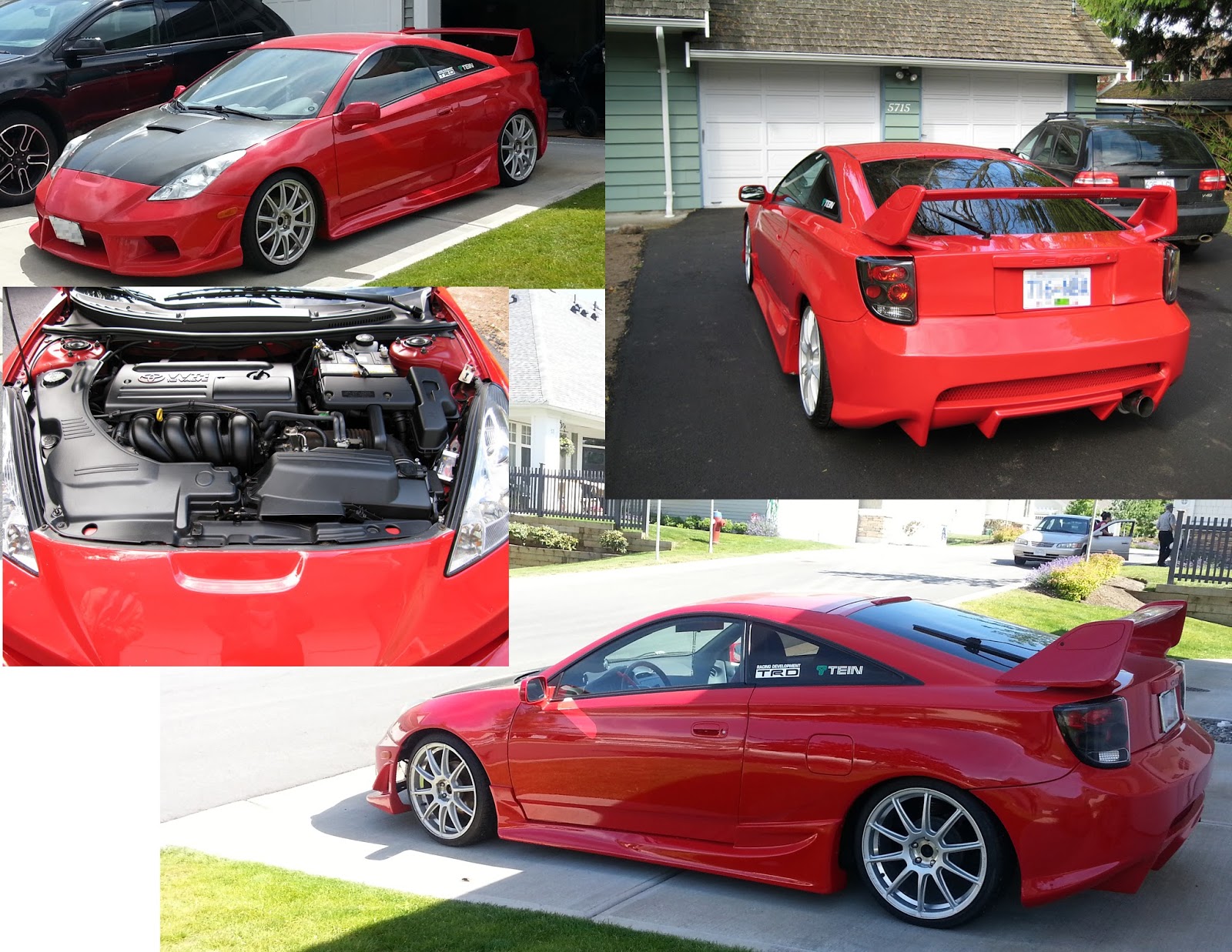
I earned this car with my own money. I didn't get any financial help from any parents or relatives and did it solo. It required alot of savings and effort from 9 years of hard work in I.T. and the computing field and living in an incredibly expensive city of Vancouver. If anyone thinks I came upon this car with any kind of ease then they need to be kicked in the face and told the truth. My car is a symbol of how hard I work and how far I've come. When I moved to Vancouver in the year 2000 after graduating college I had only $450 dollars in my pocket, a duffle bag of clothes and my home computer to start with. My vehicle is a very rare and ultra customized 2002 Toyota Celica GT/TRD (Gran Turismo Toyota Racing Development). I bought my car in April 2009 second hand and in great shape. I only added a few of my own touches to make it the piece of art that it is today. I bought it for roughly only $16,000 dollars and it was a really great deal. The car with the amount of aftermarket modifications could easily be worth $40,000 dollars.

I take my driving very seriously. I was taught to drive by my eldest brother Conrad before I was 12 years old in 1992. He took it upon himself and taught me to drive since our father passed away and lost his battle to cancer the year earlier when I was nearly 11 years old. I remember that my brother tricked me into driving when I really didn't want to. He said "let's go to the video store and rent a Nintendo game". We went to the video store and I got the game I wanted, and then we took a drive out to the highway headed to the United States border. We reached a quiet straight stretch of highway and he pulled the car over to the side and tells me to get behind the wheel or we're not leaving. That was the beginning of many lessons that would turn me into the smart driver that I am today. In retrospect, it may have been illegal to do that since I was not the driving age of 16 yet, but the back roads he taught me on were pretty much desolate and empty so there was no real danger for me or any other drivers.

Today I still obey traffic laws and I don't speed recklessly. I do respect other drivers and I refuse to drive like an idiot even when other drivers piss me off. I could outdrive many people if I needed to. I had three older brothers that enjoyed driving and I inherited a part of their leadfoot mind state. Instead of wreaking havok on the real road I actually enjoy taking out alot of frustration by playing alot of racing simulator games and even have the racing steering wheel and foot pedals for my XBOX 360.

Vehicle Specifications for my 2002 Toyota Celica GT/TRD:
Color: Glossy Candy Coat Red
Engine: 1.8L Variable Valve Timing (VVT-i) 16 valve 140 horse power
Transmission: 5-speed manual
(* indicates aftermarket add-on)

Interior:
- power locks + windows
- Air Conditioning
- red & black Suede leather seats,
- red & black leather wrapped steering wheel
- red & aluminum sport pedals
- red & black leather wrapped gear shift knob
- Broadway oversized rear view mirror *
- Audio Deck: Eclipse 7-inch touch screen DVD + MP3 with GPS Navigation *
- Audio enhanced JBL 10-inch subwoofer + felt bassbox *
- Alpine 3541 Audio Amplifier 140W *

Exterior:
Suspension: Tein lowering springs with 4-inch ground clearance *
Body Style: Celica 7th Generation TRD SSII fully loaded
Body Kit: BoMex Aero complete set front bumper, rear bumper + air diffusers, left and right sideskirts ****
Hood: Tanabe Carbon Fibre *
Headlights: Xenon HID *
Wheels: Falken Ziex 512 high-performance tires ****
Rims: Racing Heart Evolution 18-inch chrome x 4 ****
Exhaust: APEXi N1 chrome catback exhaust with silencer *

Additional Accessories:
- StreetGlow Red LED lights for tire valve caps
- red & black Toyota carry pouch
- USB plug adapter for cigarette lighter
- white title vinyl decals for aftermarket brands "BoMex" and "APEXi"
- grey car cover exterior protector
- Noco G3500 car battery tender and charger